
TransPost Help
Mapping Details form
Initially it is used to map data fields in a new Mapping created on the New Mapping form
Once you have created a mapping it is shown on the list in the main form Mappings tab where you can select it and open the Mapping Details form to view and modify it.
5. The Import table should show the first line of data in the Value column. If your file has a heading row select the First row contains headings check box. If not then the columns in your file will be referred to as Field001, Field002 and so on.
6. TransPost will log errors, warnings and optionally transaction outcomes using a key field from the input file to indicate which record each log entry refers to. Select the field you want used to identify data records in the Key field for logging combo box.
7. Select the type of data you want to import into MYOB in the MYOB Data Type field. The available fields for import will appear.
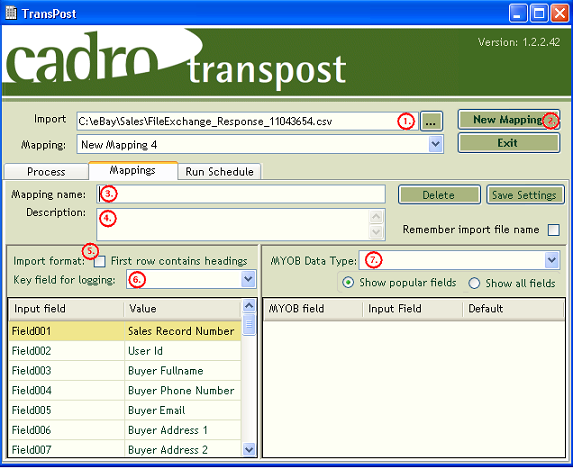 Steps 1-7 shown above.
8. For each field in the input file that is to be entered into MYOB, click on the Input Field on the left hand panel then click on the desired fields Input Field column on the right hand panel. The name of the Input field will appear. For example if you have a field called CustName on the left that you want to copy to the CoLastName field in MYOB you should first click on CustName then click into the Input Field cell to the right of CoLastName in the right hand panel.
9. To remove a mapping, double click in the Input Field column in the right hand panel.
10. To set a default, type the default value in the default column. There are a number of fields it is advisable to set as defaults if you do not have a field to map to them. These will be detailed in help specifically for each transaction type. See TransPost Transaction Types.
11. Click the Save Settings button to save your mapping. It is saved permanently unless you explicitly delete it with the Delete Mapping button.
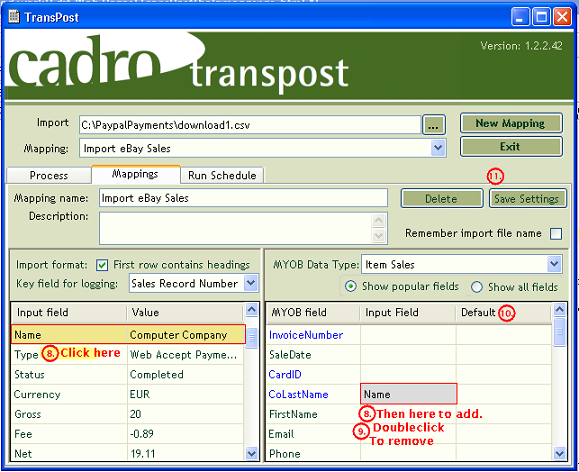 Steps 8-11 shown above.
Now you have defined your mapping you can use it to import data into MYOB but before you do we strongly recommend that the first few times you use any mapping you back up your MYOB database first and then check a number of records have been processed correctly.
Mapping Details
Import Mappings
You can also import mappings. Use the Import Mappings button on either the Start tab or the Mappings tab and then select the XML file containing the mappings you require.For some applications we have provided standard mappings that you can just download and import. See Mappings available to download.
You can also import them as useful examples that you can make over to suit your purposes. mappings files can be created
Mappings can also be saved as backup or to import on other machines. Use the Back Up All Mappings button to save all your mappings in one file or the export Mapping button to save just the currently selected mapping.